
To find a missing dimension, use (original height ÷ original width) × new width = new height. Resizing a 1600×1200 image to 400px wide gives 400×300.

Aspect Ratio Calculator
Keep dimensions in proportion: set a ratio, then get the missing width or height. Also simplifies any size to its lowest ratio.
Scale an image or a video frame by width or height alone and it is easy to end up with something visibly stretched or squashed — circles turned into ovals, faces subtly wrong — even if you cannot say at first glance what changed. This image aspect ratio calculator prevents that: pick a ratio, type one dimension, and it works out the matching one. It also runs the other way, taking any width and height and reducing them to the ratio they simplify to.
How to Use the Aspect Ratio Calculator
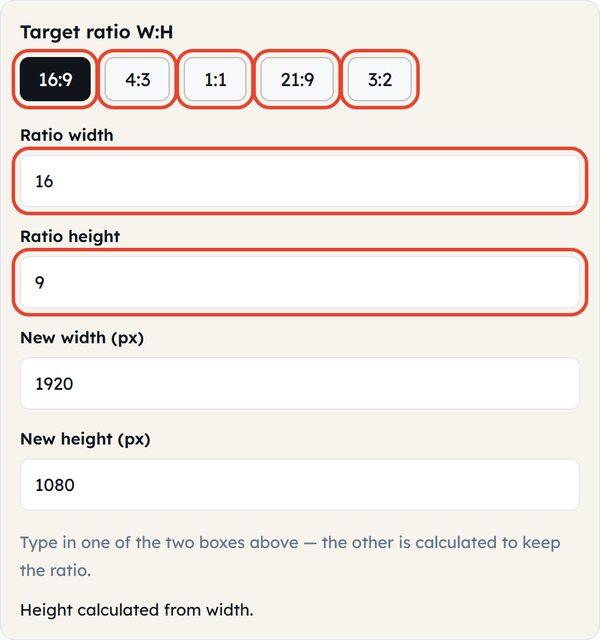
- Set the target ratio: click one of the presets (16:9, 4:3, 1:1, 21:9, 3:2), or type your own numbers into the Ratio width and Ratio height boxes.
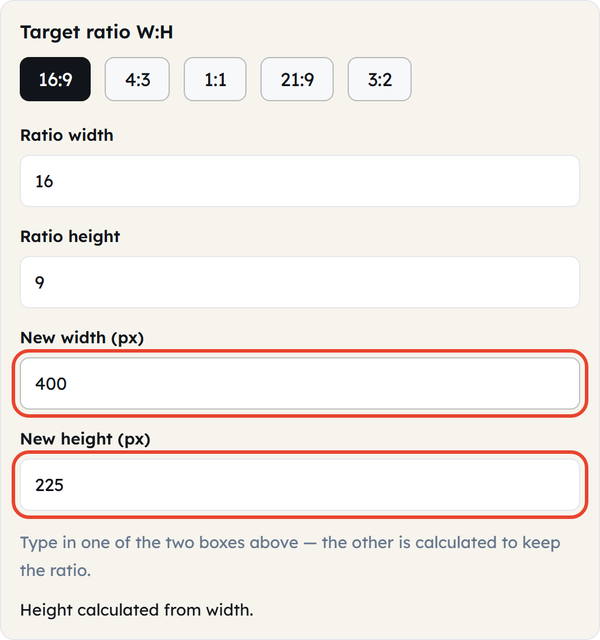
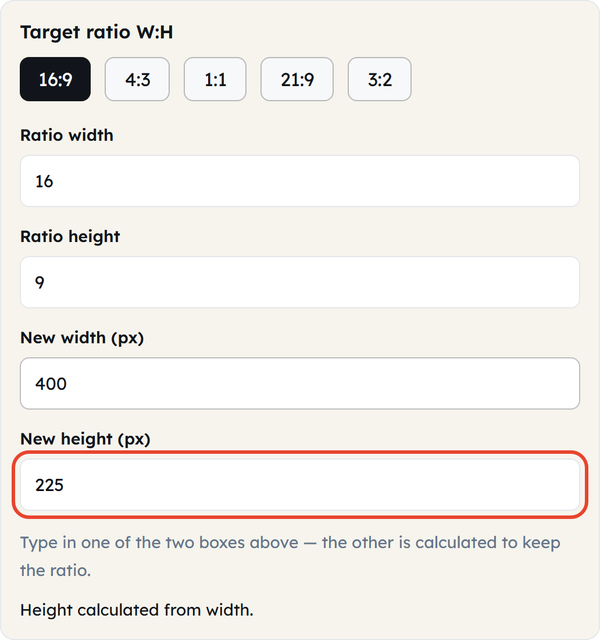
- Type into either New width (px) or New height (px). The other box fills in automatically at the ratio you set.
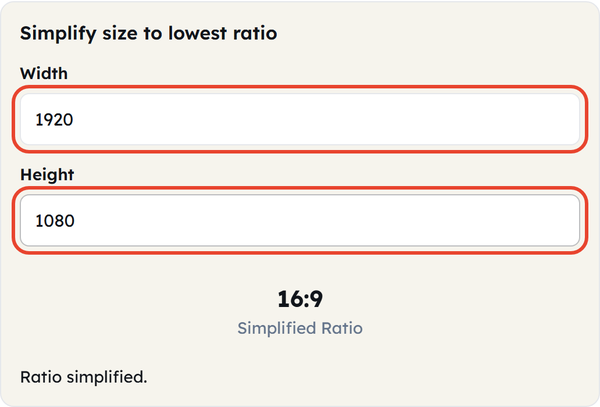
- To go the other way, use Simplify size to lowest ratio: enter a width and a height and the tool reduces them with their greatest common divisor — 1920 × 1080 comes back as 16:9.
- Everything updates as you type. There is no Calculate button.
What Is an Aspect Ratio, and How Is It Calculated?
The aspect ratio is the proportional relationship of a width to a height, such as 16:9 (or 4:3). When resizing an object while maintaining its proportions then there is no distortion — it is simply enlarged or reduced in size, but not distorted in shape.
If you know the original width and height and one of the two new dimensions, the missing one follows from a single formula:
To calculate a missing dimension:
(original height ÷ original width) × new width = new height
Example: You have a photo that is 1600×1200, and the area you want to place it in is 400px wide. New height = (1200 ÷ 1600) × 400 = 300px. Resize the image to 400×300 (same proportions, no stretching).
To reduce a size to its lowest terms, divide both numbers by their greatest common factor (the largest number that will divide evenly into both numbers). Worked example: The greatest common factor of 1920 and 1080 is 120. 1920 ÷ 120 = 16, and 1080 ÷ 120 = 9 — so 1920×1080 simplifies to the familiar 16:9 ratio.
Common Aspect Ratios and Where They Are Used
| Ratio | Typical use |
|---|---|
| 16:9 | Widescreen video, HDTV, many monitors, laptops, and TVs |
| 4:3 | Older TVs and monitors, some tablet screens, classic photography |
| 1:1 | Square format — common on social media posts and profile images |
| 21:9 | Common ultrawide monitor format and some cinematic-style video content |
| 3:2 | Common in DSLR and mirrorless cameras and traditional 35mm still photography. |
When You Would Use This
Resizing a photo or graphic to fit a slot without stretching it, preparing a video or thumbnail for a required aspect ratio, working out what ratio an existing image or video already has, setting up a design canvas at a specific ratio before you put anything on it, or turning a resolution such as 1920×1080 into its simplest ratio for reference. Used as an aspect ratio pixel calculator it works in whole pixels throughout, so the figure it returns is the one you can type straight into your editor.
Do’s and Don’ts
Do
- Set the ratio first, then resize. Changing width and height by different amounts changes the ratio, and the result looks stretched or squashed.
- Check what ratio an image or video already has with the simplify box before you assume it matches one of the presets.
- Round a fractional result to a whole pixel. One pixel makes no visible difference in most image and video work, though some workflows do need exact dimensions.
Don’t
- Resize width and height by different amounts. Even a small mismatch shows, particularly on faces, circles and straight lines.
- Assume a resolution matches a named ratio because it looks like it should. 1024×768 really is 4:3, but 1366×768 simplifies to 683:384 — not 16:9. Put it through the simplify box rather than guessing.
- Confuse resizing with cropping. This calculator changes the dimensions at a fixed ratio; cutting or padding an image to fit a different ratio is a separate operation it does not do.
Good to Know
Distortion happens the moment width and height are scaled by different amounts, and the eye picks it up quickly on faces, circles and straight lines. The safest habit is to keep the ratio locked and calculate one dimension from the other rather than setting both by hand. Note too that not every resolution lands on a named ratio — 1366×768 simplifies to 683:384, not 16:9 — so use the simplify box rather than trusting the numbers to look familiar. This calculator resizes at a fixed ratio; it does not crop, which is a different operation entirely. Everything you put into the aspect ratio calculator — pixels, ratios and simplified forms alike — runs in your browser, and the numbers you type are never sent or saved.
Frequently Asked Questions
How do I calculate aspect ratio?
How do I simplify a size like 1920×1080 to a ratio?
Divide the width and the height by their greatest common divisor. For 1920×1080 the GCD is 120, so 1920÷120: 1080÷120 simplifies to 16:9.
Why does keeping the aspect ratio matter when resizing?
If the width and the height change by different amounts the image is stretched or squashed — circles turn into ovals and faces look wrong. Keeping the ratio fixed scales everything by the same factor, so nothing distorts.
What is a common aspect ratio like 16:9 or 4:3 used for?
16:9 is the standard for widescreen video, television and most modern displays. 4:3 belongs to older televisions and monitors. 1:1 (square) is common on social media, and 21:9 is used for ultrawide monitors and cinematic video.
Can I enter any custom ratio, not just the common presets?
Yes. As well as the 16:9, 4:3, 1:1, 21:9 and 3:2 presets, you can type any width and height into the ratio fields and the calculator will use that.
Are the numbers I enter stored or sent anywhere?
No. Every calculation runs in your browser and nothing you type is uploaded or saved.