
Any extras that aren’t required to run the code, such as comments and unnecessary line breaks, indentations, and spaces.
JS Minifier
Minify JavaScript instantly and download the result as a .js file.
What the JS Minifier Does
Developing JavaScript code, with many lines of code broken across multiple lines for readability and with comments, takes up bytes that a browser has to execute correctly. This tool removes comments and whitespace from your JavaScript file, without altering its functionality.
All runs immediately in the browser; exactly how much you save is displayed prior to copying or downloading the result.
How to Use the JS Minifier
- Copy and paste your JavaScript into the input box, or load the sample to find out how to use it.
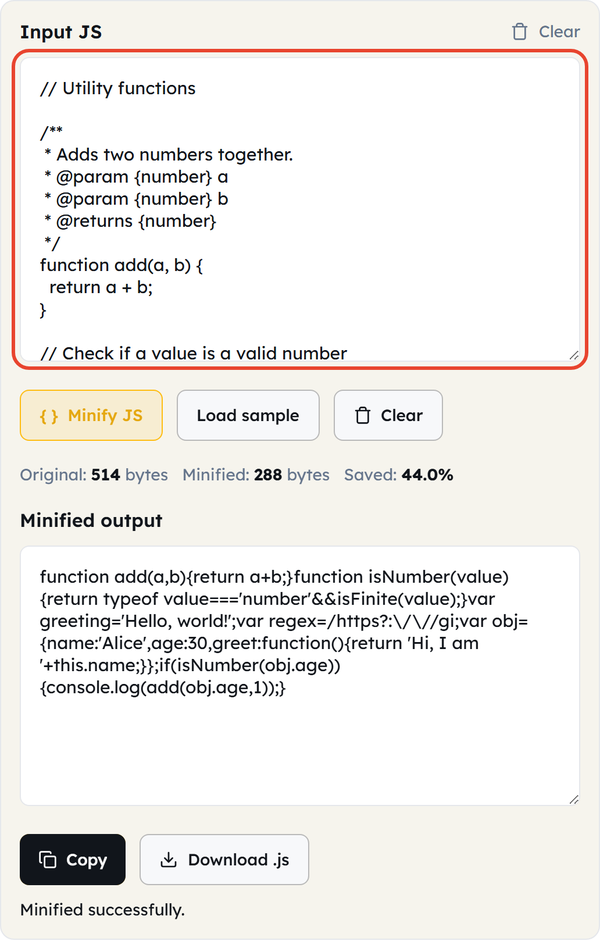
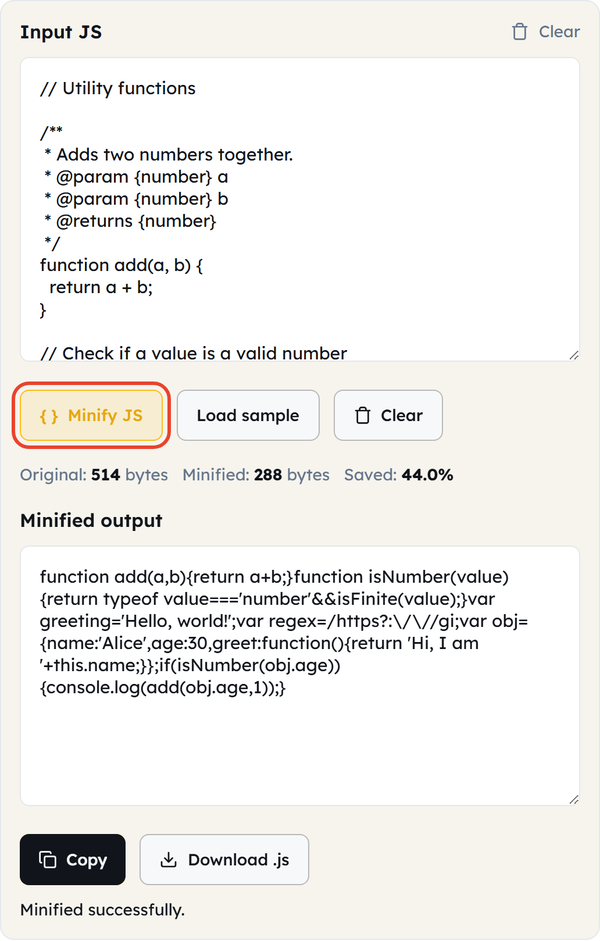
- Clicking Minify JS will remove comments and duplicate spaces right away.
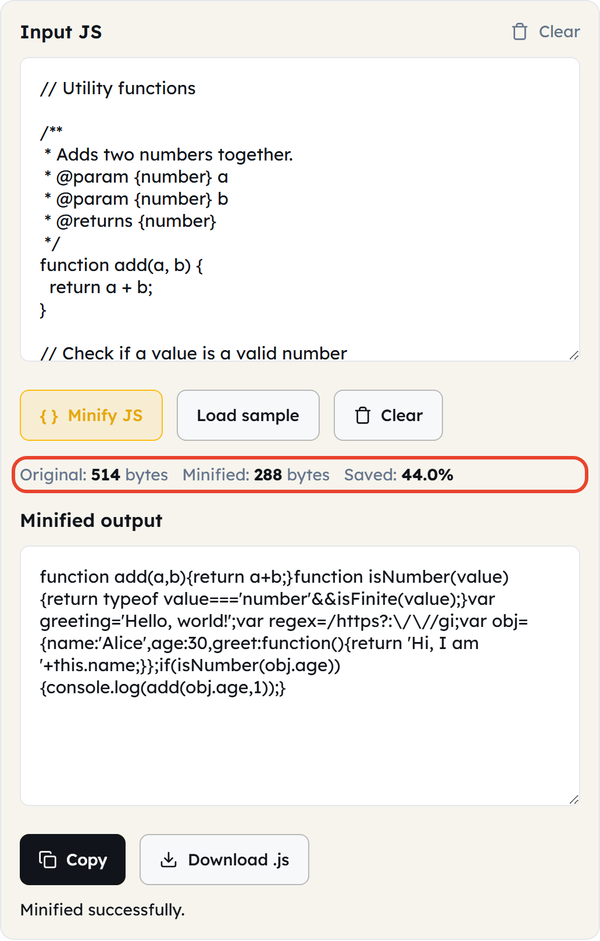
- Compare Original vs. minified bytes, plus the percentage saved.
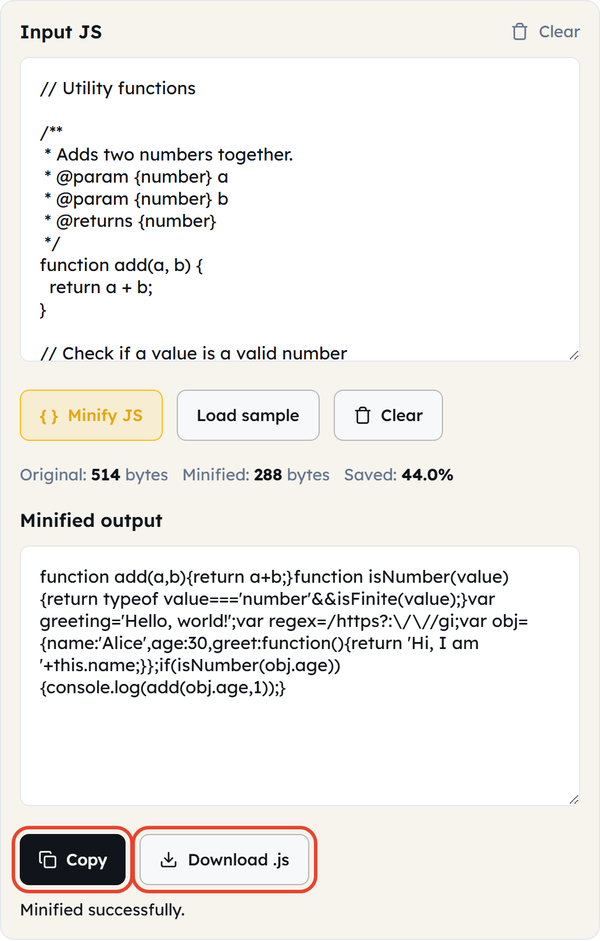
- Copy the minified output, or download it as a.js file.
- Click Clear to empty both boxes and begin a new minification.
Your code is not uploaded to a server; it’s processed in your browser.
What Is JS Minification?
- The process of stripping comments, unneeded whitespace and unnecessary line breaks from a JavaScript file to leave only what is necessary for the file to run correctly.
- Does not alter the meaning of the code — the code logic, variable names, and structure remain the same; just the formatting is removed
- Unlike uglification — a further step that renames variables to shorter names and restructures code for maximum compression — this is a comment and whitespace removal tool, not one that renames variables.
- Formatting is what makes most of a script readable; removing it should not affect the way the code runs and is usually safe to remove.
Minify vs. Uglify: What This Tool Actually Does
- The distinction matters, and most tool pages do not draw it at all:
- Minification (the process this tool applies) eliminates comments and folds whitespace; safe and predictable, meaning that the logic is never altered.
- Uglification does more, such as truncating variable and function names (getUserData becomes a) and reworking expressions for additional compression — this removes more bytes, but also makes it much more difficult to debug the output.
- Most real-world scripts lose most of their size to whitespace and comment removal alone — renaming variables on top of that saves less per change and costs readability.
- If you want to rename every variable, tree-shake unused modules and eliminate dead code, that’s a task for a build-time tool, not a paste-and-click browser-based one.
When You’d Use This
- Quickly minify a small script, snippet or CMS-embedded JavaScript without creating a build pipeline.
- Preparing a web page for static publishing where the <script> block is inline
- Trimming the payload for a quick prototype, landing page, or personal project.
- Clearing up JavaScript from a plugin, generator, or tutorial with lots of comments and formatting
- Doing a before/after file size comparison to see how much of a script’s weight comes from formatting versus logic
- Compressing a single file rather than an entire project — a fast, no-install alternative to CLI tools.
Worked Example
Before minification:
function greet(name) {
  // say hello to the user
  console.log("Hello, " + name + "!");
}
greet("World");
After minification:
function greet(name){console.log("Hello, "+name+"!");}greet("World");The comments, line breaks, and indentation are removed, and the function is still executed the same — just the size of the file differs.
Do’s and Don’ts
Do:
- Minify JavaScript only as a final step before production, not while you are still developing.
- Have a commented and readable source file as your working copy.
- For applications that use modules, tree-shaking or source maps, use a proper build pipeline (Terser, esbuild, webpack, Vite).
- Pair minification with gzip/Brotli compression on your server for the best possible size reduction.
Don’t:
- Do not edit minified JavaScript: it’s hard to read and easy to mess up.
- Don’t expect this tool to rename variables or restructure code: that would be uglification, a separate and more aggressive process.
- Do not minify code that is still buggy; debug in the readable format first, then minify.
- Avoid removing your source.js files after minification – you will need them for future updates.
Common Mistakes
- Not keeping a readable source file to edit — working with minified output as the only source makes future edits painful, if possible at all.
- Expecting comment and whitespace removal alone to match the aggressive size reduction that variable mangling gives — that extra step is uglification, and it needs a build tool.
- Minifying too soon — compressing code before it’s complete and then debugging in unreadable code.
- Using whitespace stripping in place of a real build pipeline — a large, module-based application needs the tree shaking and dead-code elimination of tools like Terser or esbuild.
Good to Know
- Most of the size reduction in the typical minification is due to the removal of comments and whitespace — variable renaming adds more, but at a lower rate of gain per variable.
- Minification and beautification are conflicting commands: beautify in writing and debugging; minify when ready for production.
- In production apps that use modules, source maps or complex syntax, dedicated build tools such as Terser (which webpack, Rollup and Vite use under the hood) are the preferred solution.
- The combination of minification and gzip/brotli compression on your server will usually give you the greatest size savings overall.
- Smaller JavaScript payloads lead to better parsing and execution time, which helps to boost page interactivity metrics such as Time to Interactive.
FAQ
What does this JS minifier actually remove?
Does this tool shorten my variables by renaming them?
No. This is called uglification and is a much tougher process. This tool is specifically for safe comment and whitespace removal while preserving variable names and function names.
Will minifying break my JavaScript?
No, it’s not a dangerous process to remove comments and whitespace; the logic and behavior of the code remains identical.
Should I use this instead of Terser or webpack for my production app?
For small static pages, snippets and quick scripts, yes. For production applications that use modules, tree-shaking or source maps, a build pipeline with Terser, esbuild or a bundler is the better long-term solution.
Is minifying JavaScript the same as compressing with gzip?
No. Minification reduces the size of the code itself; gzip/Brotli reduces the transfer size. The two together work best.
Can I read or edit the code after minification?
Technically yes — the variable names remain intact, but the formatting is lost, so it is harder to scan. Edit the source file, then re-minify.