
Favicon is a small icon that is attached to the website or web page. It is frequently displayed in the tabs and bookmark menus in various browsers and is used to mark a site for users.

Favicon Generator
Drop in a square-ish logo and get crisp favicon PNGs at every common size — 16 up to 256px — with a download for each. All rendered locally in your browser.
Use this free favicon generator to make a favicon for your site in seconds. Drop in an image and it produces every size a browser asks for, ready to download and drop into your project.
The small icon that is connected to a website is a favicon. It can be displayed in browser tabs, in bookmarks, and in other areas where a site or page requires a distinct visual presence.
Rather than resizing an image by hand and exporting each icon file yourself, let the generator produce the whole set at once.
How to Use the Favicon Generator
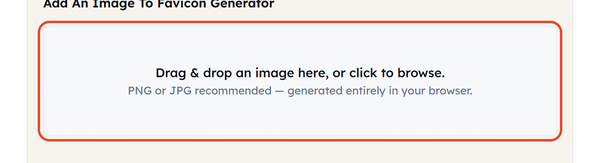
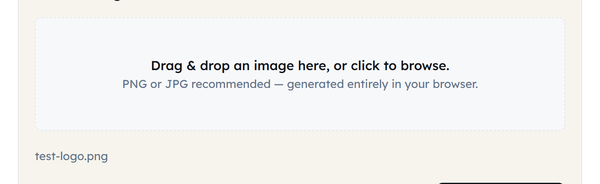
- Add your image – drag a file onto the dropzone or click it to browse. PNG or JPG works best, and GIF, BMP and WebP are accepted too.
- Check it reads at a small size – a favicon is displayed at a fraction of its original scale, so a busy logo will turn to mush. Crop or simplify the artwork before you upload it if you need to.
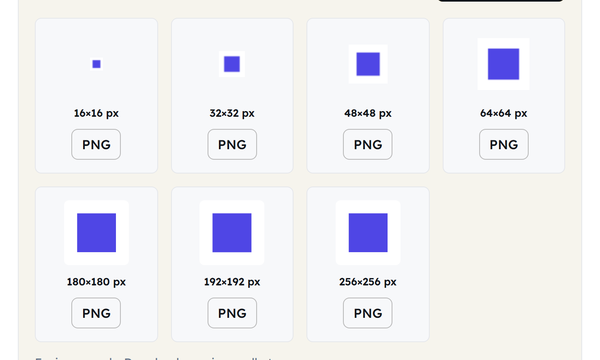
- Preview the results – every size is rendered for you: 16, 32, 48, 64, 180, 192 and 256 pixels.
- Everything is generated in your browser as soon as the image loads – the file is never uploaded to a server.

- Download all sizes – one button saves the whole set to your device.

- Add it to your HTML — Reference the favicon from your page’s <head> section.
A simple favicon can be associated with:
<link rel=”icon” href=”/favicon.ico”>
The rel=icon attribute indicates that the linked resource is the page’s icon. If more than one icon is available, then the attributes of the icon, such as type, sizes and media, can be used to choose the right resource.
What Is a Favicon?
Favicons are small icons used to visually identify a page or site, also known as a “favorite icon”. It may display in a browser window, bookmark context or in the browser UI, depending on the browser and context.
Favicons are typically available in ICO or PNG format, but in some situations other formats like GIF are also allowed.
A company’s logo, a simplified version of the company’s logo, or a unique letter may be used as the favicon for a site. Simple icons are generally better; as they’re going to be small size, they should not be too complicated.
Why Use a Favicon?
A favicon is a tiny but significant portion of a website that enables the user to identify your website when several pages or tabs are open.
Common benefits include:
- Brand recognition: It makes your website easier to identify as it is a familiar icon.
- Improved browser branding: the icon sits beside your page name across the browser interface.
- Bookmark identification: saved pages are far easier to pick out of a long list.
- Uniform colors and symbols: These may be the same as the colors or symbols used on your website.
- A more finished feel: a site with its own icon reads as complete rather than half-built.
The favicon is more of a user interface and branding item rather than a stand-in for your website’s primary logo.
What Image Should You Use for a Favicon?
Choose artwork that is still recognisable at 16 x 16 pixels – roughly the size of a browser tab icon.
Good choices include:
- A simple brand symbol – usually the best choice.
- A single letter or monogram.
- A simplified version of your logo
- A unique geometric-shaped mark.
- A high-contrast icon
Do not use an image that has a lot of text or a lot of fine details. Elements that appear legible in a large sized logo may not be legible at a favicon size.
When your logo is broad or rectangular in shape, you may want to design a simplified square logo that is just for the favicon instead of simply shrinking the whole logo.
Favicon Sizes and Formats
Favicons can be offered in various formats and sizes contingent on their use. ICO can be multiple sizes of icons, and PNG is often used for when an icon is just a single file. To assist the browser in determining appropriate resources, the HTML <link> element can contain sizes and type information.
For example:
<link rel=”icon” type=”image/png” sizes=”32×32″ href=”/favicon-32×32.png”>
You might also see an Apple touch icon on devices that have a website saved to a home screen:
<link rel=”apple-touch-icon” href=”/apple-touch-icon.png”>
Apple devices look for the apple-touch-icon link rather than the standard icon when a site is saved to the home screen.
How to Add a Favicon to Your Website
Once you’ve created your favicon, upload the icon to a place you can access from your website.
If you are looking to have a basic ICO favicon, you can put favicon.ico in your site’s root folder and call it up like this:
<link rel=”icon” href=”/favicon.ico”>
Put the link inside the <head> section of your HTML file:
<!DOCTYPE html>
<html lang=”en”>
<head>
<meta charset=”UTF-8″>
<link rel=”icon” href=”/favicon.ico”>
<title>Your Website</title>
</head>
<body>
<!– Page content –>
</body>
</html>
Declaring the icon explicitly with a link rel=”icon” tag gives you control over which file is used, rather than leaving the browser to guess at /favicon.ico in the site root.
Favicon Best Practices
Do:
- Have a clear, identifiable pattern.
- Keep the main symbol centred in the frame.
- Ensure ample contrast between icon and background.
- Test favicon at small sizes.
- Employ a version of your logo that is suitable for small areas.
- Maintain a consistent visual identity for favicon with your site’s graphics.
Don’t:
- Use an elaborate picture with fine details.
- Put too much text into a small icon.
- Stretch an image in an out of proportion manner.
- Assume a full-size logo will work as a favicon just because it looks fine large.
- Skip testing the icon on the live site once you have uploaded it.
Favicon vs. Website Logo
Favicon and a website logo are not the same thing.
Normally, a logo is displayed in a larger size and may include text, detailed illustrations or a combination of design elements. The size of the display where a favicon appears is far smaller, and so it should typically use a simplified symbol, letter or recognizable portion of the brand.
So a favicon does not need to be a shrunken copy of your logo – and usually should not be.
Is a Favicon Important for SEO?
A favicon is not a replacement for the traditional SEO parts like the content of your web page, the titles, pages that are crawlable, and structured technical implementation. It’s primarily used for visual identification and user experience.
A recognisable favicon does make your site easier to pick out when someone has a dozen tabs open, which is a small but real user-experience win.
Frequently Asked Questions
What is a favicon?
How big should a favicon be?
There’s no single size that fits all favicon scenarios. The size of icons can vary from one context to another, and the sizes attribute can provide information to browsers about the sizes of icons. Multiple sizes are also possible in ICO files.
Is it allowed to use a PNG as a favicon?
Yes. A PNG works as a favicon and is referenced with a link rel=”icon” element, for example:
<link rel=”icon” type=”image/png” href=”/favicon-32×32.png”>
Am I required to have a favicon.ico file?
Not necessarily. Other formats of favicon are supported by modern browsers such as PNG. But favicon.ico is a common icon and browsers will automatically ask for this from the root of a site.
Where to include the favicon HTML code?
The <link rel=”icon”> tag should be located in the <head> of an HTML document.
Can I use my logo as a favicon?
Yes, but if your logo has small text or intricate elements, a simplified version may be more effective. The favicon is a logo scaled down compared to most website logos.
Why doesn’t my new favicon appear?
Ensure that the path of the favicon file is correct, the favicon file is created, and that the <link> element is linked to the favicon file. You might also be using a version of the page that was previously cached, try to refresh the page or open it in a private window.
May I use the same favicon for all the pages?
Yes. A favicon can be used on every page of the website. An icon file can be used across all of the pages.
Related Tools
Image Resizer
Resize images to exact dimensions or percentages.
- 100% Free
- Customizable
- Download
- Unlimited
Image Compressor
Shrink file size while keeping visuals sharp.
- 100% Free
- Customizable
- Download
- Unlimited
PNG to JPG
Convert PNG images to JPG with quality control.
- 100% Free
- Customizable
- Download
- Unlimited
Image to Base64
Encode images as Base64 for CSS or HTML.
- 100% Free
- Customizable
- Download
- Unlimited
Image Cropper
Crop images to custom ratios and positions.
- 100% Free
- Customizable
- Download
- Unlimited