
It depends on the method. Lossless keeps every pixel of the original data, while lossy discards some of it and can soften fine detail. In practice a sensible lossy setting gives a large reduction in file size for very little visible change.

Image Compressor
Shrink photos with a quality slider, compare file sizes instantly, and download a smaller JPEG or WebP — all in your browser.
This is a free image compressor that reduces an image’s file size without compromising its quality. Upload an image, select your compression level, view the output, and download the optimised image for the web, social media, documents or other digital applications.
Smaller images can be stored, shared and transferred more easily. Optimising images can also be beneficial for websites to help visitors download less data.
How to Use the Image Compressor
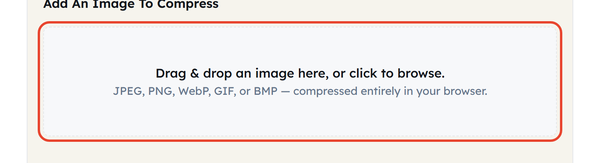
- Add an image – drag a file onto the dropzone or click it to browse. JPG, PNG, WebP, GIF and BMP are all accepted.
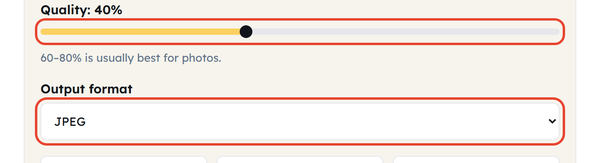
- Set the quality – the slider runs from 1 to 100 and starts at 75. You can also choose whether the result comes out as JPEG or WebP.
- Check the preview – look at the compressed version at full size before you trust the number, since the point at which quality starts to show varies by image.

- Compare the sizes – the readouts show the original size, the compressed size and the percentage saved.

- Download the image – one button saves the compressed file to your device.

What Is Image Compression?
The data required to store an image can be reduced by image compression. These are available in 2 main types:
- Lossless: Saves the image data exactly as it was taken, and so the file is smaller in size.
- Lossy compression: discards some of the image data to reduce file size and can result in a slight loss of quality.
JPEG typically is lossy, and PNG traditionally is lossless. WebP also has both options.
Why Compress Images?
Compressing images is worth doing when you want to:
- Cut the weight of a page without changing how it looks.
- Speed up how quickly images load.
- Save storage space
- Make files easier to share and email.
- Minimize amount of data transferred
The compression depends on the image format, size, content and of course previous compression.
JPEG, PNG, WebP and AVIF
JPEG: For photographs and other images that contain lots of colors.
PNG: Appropriate for logos, screenshots, graphics and transparency or lossless quality.
WebP: Lossy/lossless compression, can offer smaller files for many kinds of images.
AVIF: designed to be efficient at compressing images and includes transparency and animation features.
The right format depends on the image, the quality you need and what you have to stay compatible with. This tool writes JPEG or WebP; AVIF is worth knowing about but is not one of the output options here.
Image Compression vs. Resizing
Resizing an image changes the width and height of the image, but compression decreases the amount of data in an image.
Resizing an image before or during compression may greatly decrease file size if the image is significantly bigger than it needs to be to be displayed. In such a case, a large photo of 4000 × 3000 pixels doesn’t necessarily need to be that big if it will be viewed at a smaller 800 × 600 pixel size.
Image Compression Best Practices
Do:
- Keep the original of any image that matters.
- Compare the compressed image to the original image.
- Choose an appropriate format.
- Resize an image first when it is far larger than it will ever be displayed.
- Adjust compression for a quality vs size compromise.
Don’t:
- Always use the same compression level for all images.
- Compress important images repeatedly and without checking the quality.
- Apply heavy compression if small details are important!
- Pay attention to the percentage reduction and not actual image quality.
Frequently Asked Questions
Is there any loss in quality when compressing images?
Can I compress a JPG again?
Yes, but each pass throws away a little more data. Compress the same JPEG too many times and the artefacts become visible.
Should I compress images as PNG?
Yes. Lossless compression is an optimization method that can be used for PNG files. In some cases, the resulting file size might be smaller when converted to WebP, depending on the image.
What should be the maximum compression level for images?
There’s no one size that fits all images. Select the maximum compression rate possible that offers a good quality to file size ratio.
Do I need to resize before compressing?
If the image is much larger than the size it will be shown at, resizing it first saves far more than compression alone can.
Does compressing images improve website performance?
Yes. Smaller files move less data, so pages render sooner – especially on mobile connections. You get the best result by combining compression with sensible dimensions, a suitable format and lazy loading.
Related Tools

Image Resizer
Resize images to exact dimensions or percentages.
- 100% Free
- Customizable
- Download
- Unlimited
PNG to JPG
Convert PNG images to JPG with quality control.
- 100% Free
- Customizable
- Download
- Unlimited
Image to Base64
Encode images as Base64 for CSS or HTML.
- 100% Free
- Customizable
- Download
- Unlimited

Favicon Generator
Create favicons in multiple sizes from one image.
- 100% Free
- Customizable
- Download
- Unlimited

Image Cropper
Crop images to custom ratios and positions.
- 100% Free
- Customizable
- Download
- Unlimited