
Not necessarily. An alphabetical sort treats numbers as text, so “10” sorts before “2” because the comparison runs character by character. Pad shorter numbers with leading zeros — “02” instead of “2” — if you need true numeric order.

Sort Text
Sort lines, words, or characters A→Z, Z→A, by length, reverse, or shuffle.
Manually reordering a list — alphabetizing names, sorting keywords, or randomizing a set of options, gets unmanageable fast once it grows past a handful of lines. The Sort Text tool reorders any list instantly, in five different sort modes and with three optional modifiers which control exactly how it is sorted.
Copy and paste your list, select a sort type, and get the reordered result in one click.
How to Sort and Reorder Text in Seconds
- Paste your list into the input box, one entry per line — or click Paste to pull it straight from your clipboard.
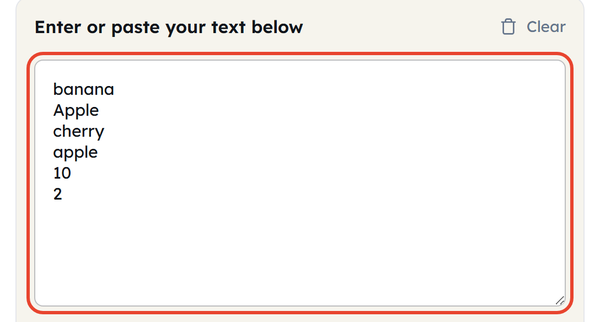
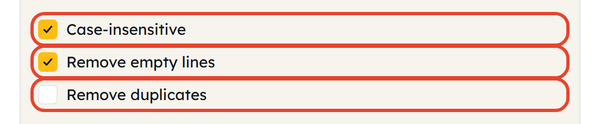
- Set your modifiers first: Case-insensitive and Remove empty lines are already ticked, Remove duplicates is not.
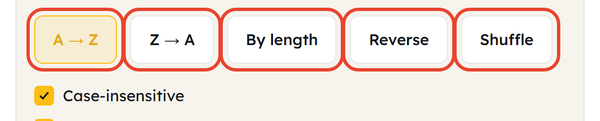
- Click a sort mode — A → Z, Z → A, By length, Reverse or Shuffle — and the reordered list appears in the output box straight away.
- Changed a modifier after sorting? Click the sort mode again. The output only refreshes when a mode button is clicked, not when a box is ticked.
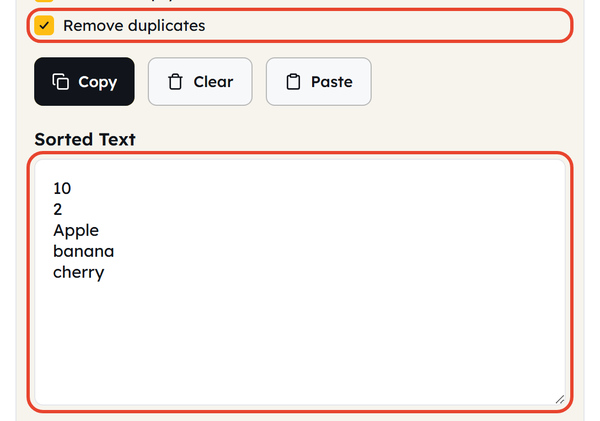
- Click Copy to grab your newly sorted text, or Clear to start over. The Characters, Words and Lines counts above the input box describe what you pasted in, not the result.

What Is Text Sorting and How Does It Work?
Sorting text means taking a raw list of lines and organizing them into a defined, logical order. That order might be alphabetical, based on length, deliberately reversed, or fully randomized depending on your goal.
This tool covers five different sort modes:
| Sort Mode | What It Does |
|---|---|
| A → Z | Sorts lines alphabetically, from first to last. |
| Z → A | Sorts lines alphabetically in reverse, from last to first. |
| By length | Orders lines by character count, from shortest to longest. |
| Reverse | Flips your existing line order upside down without alphabetizing. |
| Shuffle | Shuffles all the lines in a random sequence. |
And three modifiers that change how any of them behave — two of which are already switched on:
| Modifier | What It Does |
|---|---|
| Case-insensitive | Treats “apple” and “Apple” as the same word. Ticked by default; untick it and a lowercase entry sorts just ahead of its capitalised twin. |
| Remove empty lines | Removes blank lines from your list before sorting. Ticked by default. |
| Remove duplicates | Keeps only one copy of any repeated line in the final result. |
When Should You Use a Text Sorting Tool?
- Sorting items in a list of names, keywords or product SKUs by alphabetical order for reporting purposes.
- Alphabetizing a keyword research export so near-identical terms group together before you work through them.
- Sorting a list by length to easily get the shortest or longest entries in a list.
- Shuffling through an array of possibilities for a raffle, quiz order, or groups for A/B testing
- To clean and alphabetize a contact list/e-mail export in one action
- Reversing a list that has been sorted in chronological order, such as a changelog or timeline, without the need to re-sort the list.
Text Sorting Do’s and Don’ts
| Do | Don’t |
|---|---|
| Leave “Case-insensitive” ticked for natural alphabetical order. | Expect “By length” to alphabetize. It strictly counts characters. |
| Choose “Remove duplicates” to quickly clean raw data. | Confuse “Reverse” with “Z → A”. Reverse just flips your current order. |
| Save a backup before using “Shuffle” since it can’t be undone. | Ignore numbers sorted as words. In an A→Z sort, “10” appears before “2”. |
What to Know Before Sorting Your Text
- Punctuation and symbols at the start of a line sort ahead of both letters and numbers, so a line beginning with a dash or an asterisk lands at the top of an A → Z result.
- “By length” sorts by character count including spaces, so “New York” (8 characters) sorts as longer than “Paris” (5 characters), regardless of word count.
- If you use both “Case-insensitive” and “Remove duplicates”, the entries “Email” and “email” will be merged since they are the same value, not sorted side by side.
- Shuffle uses a fresh random order each time, so if you want to keep a particular shuffled result, copy it out before you click anything else.
- Paste a single line rather than a list and the tool sorts the words inside it instead — “zebra apple mango” comes back as “apple mango zebra”.
How Numbers, Symbols, and Special Characters Affect Sorting
Sorting uses your browser’s own language-aware comparison rather than raw character codes. In practice, that means:
- Numbers sort before letters, and they sort as text rather than by value: a list of 1, 2 and 10 comes back as 1, 10, 2.
- Symbols and punctuation at the beginning of a line (a hyphen, an asterisk, a quotation mark) sort before any letter or number.
- Accented characters sort next to their unaccented versions rather than away from them — éclair lands directly after eclair, and über directly after uber — which keeps a multi-language list readable.
If a sorted list looks “wrong” at a glance, it is almost always one of these edge cases rather than a sorting error — check the first few lines of the result first.
Frequently Asked Questions (FAQs)
Does ‘A → Z’ sort numbers correctly, like 1, 2, 10?
What’s the difference between ‘Reverse’ and ‘Z → A’?
“Z → A” sorts your list alphabetically and hands it back in reverse alphabetical order. “Reverse” does not alphabetize at all; it simply flips the order of the lines you already have.
Can I sort a list and remove duplicates in the same step?
Yes. Tick “Remove duplicates” before you click a sort mode and the tool drops the repeats and sorts in a single pass.
Does ‘Shuffle’ give a different result every time I run it?
Yes. Each click of Shuffle puts the lines into a fresh random order.
Is my text saved anywhere when I use this tool?
No. Sorting happens in your browser — nothing is uploaded and nothing is stored.
Is there a limit to how many lines I can sort?
No. A three-thousand-line list sorts as instantly as a five-line one.