
The tool sets no limit of its own, but a long phrase repeated many times produces a very large block of text that can be slow to copy and paste, depending on your device and browser.

Text Repeater
Repeat any text with a custom separator, new line, or space.
Typing or copy-pasting the same word or phrase over and over is a waste of time whether you need it once or a hundred times. The Text Repeater generates exactly as many repeats as you need, with your choice of separator between them.
Type your text, set a repeat count, choose how the repeats should be joined, and generate.
How to Use the Text Repeater
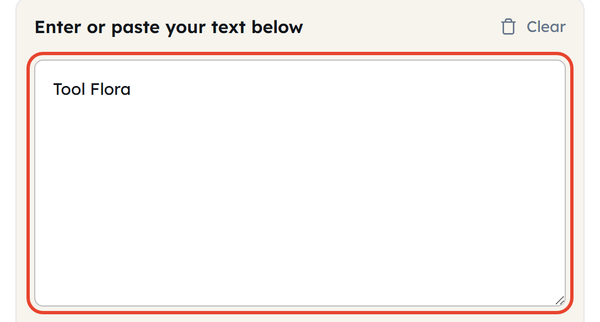
- Enter or paste the text you want repeated into the box — or click Paste to pull it straight from your clipboard.
- Type the number of repetitions you need. It has to be a whole number; anything else returns “Number of repetitions must be a whole number.”

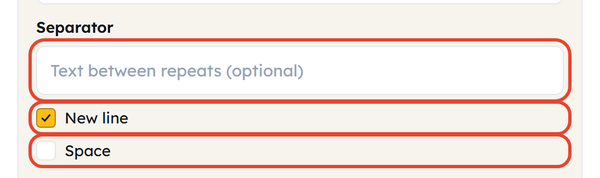
- Choose what goes between the copies: type your own separator, tick New line, tick Space — or leave all three alone and the copies run straight together.
- Click Repeat. The result appears in the Repeated Text box underneath.
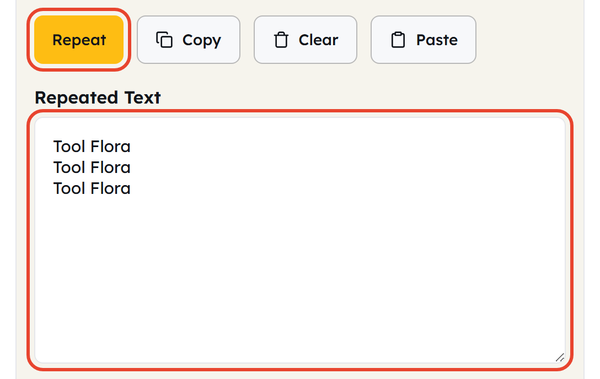
- Click Copy to grab the result, or Clear to start again.

What Is a Text Repeater & How Does It Work?
A text repeater repeats a word, phrase or paragraph a set number of times and joins each copy with the separator you choose. It is a small utility, but it saves you the tedium of copying and pasting the same thing over and over when you need several copies for testing, formatting or filler.
What you put between the copies changes the shape of the output significantly — and the three controls stack rather than compete:
| Separator Option | Result |
|---|---|
| Space | Puts one space between the copies, keeping them on a single continuous line. |
| New line | Stacks each copy vertically on its own row. |
| Custom separator | Inserts any character, word or emoji you type between the copies (a comma, a dash, or ✨). Tick New line or Space as well and both are added after it. |
When Should You Use a Text Repeater?
- Generating repeated test rows to check how a table, list, or card layout handles multiple entries
- Creating filler or stress-test data to see how a form or field handles a long input
- Building a quick visual pattern or spacer using a repeated character or symbol
- Producing sample data for a script or spreadsheet that needs several identical placeholder rows
- Making a playful or attention-grabbing message for personal use, like a chat or social caption
- Testing how an app or platform handles very long or repetitive text input
Text Repeater Do’s and Don’ts
| Do | Don’t |
|---|---|
| For spreadsheet or UI mockups use “New line”. | Publish on live webpages (search engines flag it as spam). |
| Test with a small amount of data before generating massive text blocks. | Use as a substitute for varied test data (it won’t catch diverse input bugs). |
| Pick a distinctive custom separator if you plan to split the text apart again later. | Use enormous repeat counts — millions of characters can lock up your clipboard. |
What to Know Before Repeating Large Amounts of Text
- Repeating a string is a quick way to test how an interface handles overflow. Drop a long repeated block into a button, card or input field, and if it breaks visually you have found a layout bug before real users do.
- Even a short phrase turns into a very large block quickly, because the character count rises in step with the repeat count — a 20-character phrase repeated 5,000 times is 100,000 characters.
- Repeated text is not the same as varied test data — if you are testing the ability of a system to respond correctly to a variety of inputs, then repeating identical text won’t find the bugs that occur with only varied data.
- Some messaging apps and platforms impose their own message length limits, so a very long repeated block can be rejected or truncated at the other end.
- Leave the separator field empty and both tick boxes clear and the copies run together with nothing between them — “Hi” three times comes back as “HiHiHi”.
- The Characters, Words and Lines counts above the input box describe the text you typed in, not the repeated result.
Frequently Asked Questions (FAQs)
Is there a maximum number of times I can repeat text?
Can I repeat a whole paragraph, not just a word?
Yes. The tool repeats whatever you paste in, whether that is a single word, a sentence, or a full paragraph.
Will repeated text hurt my website’s SEO if I publish it?
It can. Search engines are built to detect and ignore repetitive, low-value content, and a page stuffed with repeated phrases reads as spam rather than as a useful page. Use this tool to test, format or amuse yourself — not for published web copy.
What’s a good use for the ‘New line’ option specifically?
It is useful when you need to test a layout several times over, such as a table, a list component or a form with multiple instances of the same field.
Can I use emojis or symbols as a separator?
Yes. The separator field accepts any text or symbol, emoji included, so you can join the copies with a sparkle, a dash or anything else you type in.
Do the character and word counts include the repeated output?
No. The Characters, Words and Lines counts sit above the input box and describe the text you typed in, not the result. To see how big the output is, copy it out and check it there.