
It is a free, distraction-free writing space for quick notes. There is no document to set up and nothing to install — you open the page and start typing.

Notepad
A distraction-free notepad that auto-saves to your browser as you type. Your notes are here when you come back.
You can write something down quickly without opening a full word processor or installing another app. Tool Flora’s online notepad is a clean, distraction-free space for quick notes that lives entirely in your browser — nothing you type is sent to a server. Start typing and your notes save themselves as you go. Come back later to copy the text, download it, or clear it out.
It is a useful tool for storing temporary notes, listing ideas, reminders, drafts, or other small pieces of text.
How to Use the Online Notepad
It is a simple tool that lets you make notes quickly, directly in your browser.
Start Writing
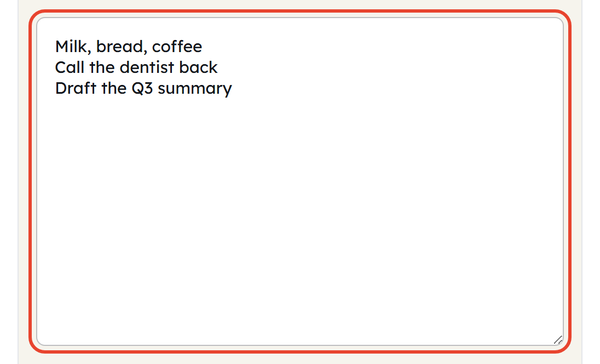
Click inside the writing area and start typing, just as you would in any text editor.
Let It Save Automatically
The notepad saves whatever you type into your own browser as you go — the indicator above the buttons reads Saved ✓ — so there is no save button to click.

Check Your Note
The counter beside the status reads your note back as words and characters, so you can keep an eye on its length.

Copy Your Text
Click Copy to put the whole note on your clipboard, ready to paste elsewhere.

Download Your Note
Click Download.txt and the note is saved to your device as notes.txt.

Clear the Notepad
Use Clear to wipe the notepad and start fresh. It clears immediately without asking, so copy or download anything important first.

What Is an Online Notepad?
It is an online notepad tool designed to help users store and create notes directly in their web browser. Unlike a full word processor, this tool focuses on basic writing rather than advanced formatting and complicated editing features.
You can think of it as a digital sheet of paper: jot things down, then save them as a file if you want to keep them. It is a distraction-free tool from Tool Flora that saves your text as you type, without any manual work.
When Would You Use This?
Quick Notes
You can open it instead of installing an application and write down what you need to remember before you forget about it.
Writing Ideas
This tool helps you capture your sudden ideas that you can organise later.
To-Do Lists
Create a simple list of your tasks that you want to complete that day.
Temporary Text
The online notepad tool can help you hold text temporarily while working between websites or applications.
Drafting
Write a rough version of an email, paragraph, message, caption, or other important text before moving to the next step.
Copy & Paste
While you work on another task, keep frequently used temporary text in one place.
Study Notes
Students can get help from this tool with quick notes, reminders, definitions, or whatever the important points are.
Work & Personal Reminders
From meeting points to shopping lists, this online notepad tool can handle multiple daily writing tasks.
Do’s and Don’ts
Do’s
- Use the notepad for quick notes and temporary writings.
- Let the text save itself as you type rather than looking for a save button.
- Download important notes as a.txt file.
- Copy the text if required before clearing it.
- Keep track of words and characters with the help of the word and character count.
- Keep your notes organised while doing multiple tasks.
Don’ts
- Don’t clear the notes before saving or copying anything important.
- Don’t confuse a browser-saved note with a properly backed-up document.
- Don’t reach for a plain notepad when you need advanced formatting or editing — use a word processor.
- Don’t store highly sensitive information unless you understand how browser-based storage works.
- Don’t rely on temporary notes as your only copy of important information.
Good to Know
- The notepad saves the text while you are busy typing, and shows Saved ✓ once it has.
- You can keep track of the number of words and characters while writing.
- Use the copy button to copy the entire note at once.
- Download the note and it saves as notes.txt.
- Clear wipes the notepad straight away, with no confirmation step.
- The online notepad tool is easy to use and simpler than a word processor.
- Plain text is helpful when you don’t need colors, images, or fonts.
- Your notes are stored in this browser on this device only — they will not appear in another browser, on another machine, or in a private window, so download anything you need to keep.
- This tool is designed to provide a simple interface and distraction-free space for writing without any large collection of editing features.
Online Notepad vs Word Processor
The online notepad and a word processor both allow you to write for different purposes and needs. An online notepad is useful when you want to type quick notes without dealing with formatting or complicated menus. Meanwhile, a word processor is more effective in scenarios where you need to do formatting, advanced styling, or add headings, tables, or document layouts.
The conclusion is that when you need a quick note, temporary text, or a simple to-do list, an online notepad will be sufficient, and if you need to add professionalism to your documents or advanced formatting, you will need a word processor.
Why Use a Browser Notepad?
It is useful for people who want to write immediately without setting up the full document. Especially for small tasks where opening a larger application is unnecessary. It is simple to use; you just need to start writing afterwards. You can either copy or download the notes. Your progress will be saved automatically without you having to save it repeatedly.
Frequently Asked Questions
What is the Tool Flora Online Notepad?
Does the notepad save my notes automatically?
Yes. Your notes save as you type, into this browser on this device, and the indicator reads Saved ✓ once they have.
Can I download my notes?
Yes. Click Download.txt and the note saves to your device as notes.txt.
Can I copy my notes?
Yes. Click Copy and the whole note goes to your clipboard, ready to paste anywhere.
Can I see the word count?
Yes. The notepad shows the number of words and characters in your current note as you type.
Can I use the notepad for writing drafts?
Yes. It suits quick drafts and sudden ideas — emails, messages, articles, to-do lists and any other plain text.
Does it support advanced text formatting?
No. It is deliberately built for temporary or quick notes rather than as a word processor. If your work needs advanced formatting or editing, a dedicated word processor is the better fit.
Do I need to install an app?
No — it runs directly in your browser.
Is the Online Notepad free?
Yes, it is free to use, like every other tool on Tool Flora.
Is an online notepad good for storing important information?
Not on its own. The note lives in one browser on one device, so anything important should be downloaded as a.txt file or copied somewhere with a proper backup.
Related Tools

QR Code Generator
Generate QR codes for URLs, text, WiFi, and more.
- 100% Free
- Customizable
- Download
- Unlimited
Stopwatch
Track elapsed time with lap support.
- 100% Free
- Customizable
- Download
- Unlimited

Countdown Timer
Set a countdown for tasks and reminders.
- 100% Free
- Customizable
- Download
- Unlimited
Pomodoro Timer
Stay focused with classic Pomodoro sessions.
- 100% Free
- Customizable
- Download
- Unlimited

Coin Flip & Dice
Flip a coin or roll dice for quick decisions.
- 100% Free
- Customizable
- Download
- Unlimited