
Yes, if the tool processes the image in your browser and not on a server. No image is ever sent or stored in this tool and is cropped on your device.

Image Cropper
Load an image, drag a rectangle to crop, and download the result at full resolution — everything stays in your browser.
Use this free image cropper to quickly cut unwanted areas from your images and create the exact composition you need. Upload an image, select the area you want to keep, adjust the crop, preview the result, and download the cropped image.
Cropping is useful when you need to remove distractions, focus on a specific subject, change the composition, or prepare an image for a particular size or aspect ratio.
How to Use the Image Cropper
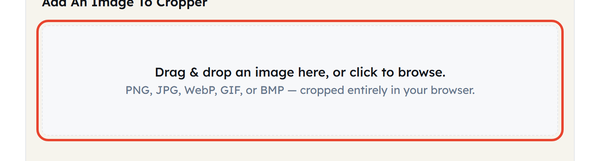
- Drag an image onto the dropzone, or click it to browse. PNG, JPG, WebP, GIF and BMP are all accepted.
- Click and drag on the image to draw the crop selection. Nothing else becomes available until you do – Crop selection stays greyed out and the X, Y, Width and Height boxes stay empty.
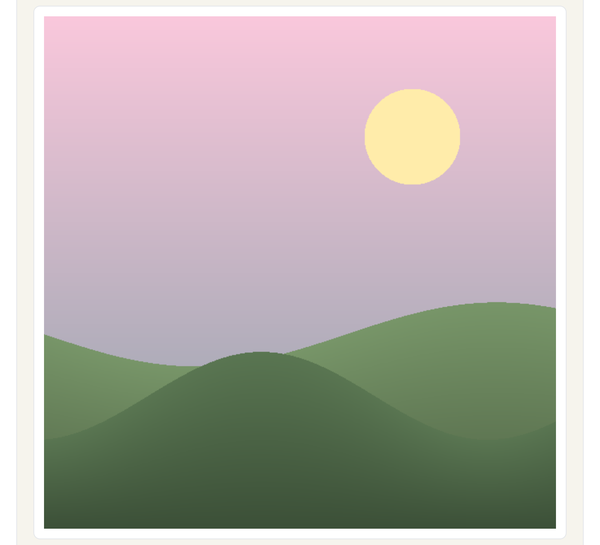
- Fine-tune it with the X, Y, Width and Height fields once the selection exists, instead of trying to land it perfectly by dragging.

- Click Crop selection to apply it, or Clear selection to start the selection again.

- Click Download cropped image to save the result at the crop dimensions you set.

What Does Cropping Actually Do, and How Do I Get a Good Result?
With cropping, you are removing all the other parts of the image, leaving just the pixels in your selected area, and no part of the image is resized, compressed, or altered; that is, the cropped image retains the resolution and quality of the original image. Cropping and resizing are different operations. Cropping removes unwanted portions of an image and keeps the selected area. Resizing changes the image’s dimensions without necessarily removing any part of the composition.
If you need an exact square crop, draw an initial selection and then enter the same value for Width and Height, such as 800 × 800.
Even for a basic crop, a quick rule of composition that will help you is that of the “Rule of Thirds,” which means to picture a grid of 3 by 3 over the image and position the primary subject on one of the corners or lines of that grid instead of dead center. It’s not a rule, but it’s a very practical guideline if you have a crop that doesn’t seem exactly centered or balanced and you’re not certain why.
When You Would Use This
Squaring up a profile photo, cutting a wide shot down to a website header or blog image, removing distractions from the edges of a photo before sharing it, pulling one detail out of a larger picture, or getting a product or portfolio shot into the format another platform expects.
Do’s and Don’ts
Do:
- Use the X, Y, Width and Height fields to finish the job rather than relying on a freehand drag alone.
- If scaling and cropping, crop before resizing so you’re operating on the final composition prior to scaling it to a target dimension.
- If a straightforward centered crop seems visually flat, try off-center, using the rule of thirds.
Don’t:
- Expect a crop to rescue a blurry photo – cropping only removes pixels, it never adds sharpness or detail to the ones that remain.
- Crop so tight that the subject has no room to breathe; it makes portraits and product shots feel cramped.
- Judge the final crop from the preview alone – check the downloaded file, since a crop can read differently once it is out of its original surroundings.
Good to Know
Cropping is often confused with resizing, and they are not the same: a crop removes part of the picture, while resizing scales the whole thing without discarding anything. Order matters too – cropping first and resizing afterwards gives cleaner results than the reverse. A crop does not recompress the image either, so the pixels you keep are exactly the pixels you had. Everything happens locally in your browser: nothing is uploaded, stored or seen by anyone else.
Frequently Asked Questions
Is it safe to crop a photo using an online tool?
What image formats does this cropper support?
Supported image formats include PNG, JPG, WebP, GIF and BMP.
Will cropping reduce my image’s quality?
No. Only the pixels outside your selection will be removed, the pixels inside will be downloaded at the same resolution and will not be resampled or compressed again.
How do I crop an image to an exact size, like a square?
After making a first drawing, enter matching values in the width and height fields to get a precise square crop, instead of just eyeballing the drag.
What is the rule of thirds, and how does it help when cropping?
The rule of thirds is a composition principle that means dividing the picture mentally into a 3×3 grid and placing the focal point of the image at any of the intersecting points or along the lines. This can produce a more balanced and distinctive composition, as placing the main subject in the center of the frame can sometimes lead to a dull image.
Does this tool add a watermark or require a signup?
No. You can use the tool without signing up and you won’t see a watermark on the cropped image.
Related Tools
Image Resizer
Resize images to exact dimensions or percentages.
- 100% Free
- Customizable
- Download
- Unlimited
Image Compressor
Shrink file size while keeping visuals sharp.
- 100% Free
- Customizable
- Download
- Unlimited
PNG to JPG
Convert PNG images to JPG with quality control.
- 100% Free
- Customizable
- Download
- Unlimited
Image to Base64
Encode images as Base64 for CSS or HTML.
- 100% Free
- Customizable
- Download
- Unlimited

Favicon Generator
Create favicons in multiple sizes from one image.
- 100% Free
- Customizable
- Download
- Unlimited