
Resizing scales the image up or down, maintaining all the content of the original image. Cropping is cutting away a portion of the image while preserving the rest at the original resolution.
Image Resizer
Resize any image to exact pixel dimensions, keep or unlock the aspect ratio, then export as PNG, JPEG or WebP — all inside your browser.
It’s an experience we’ve all had: uploading a picture somewhere, only to hit a file-size or dimension limit, or to see a gorgeous photo get scaled up and become blurry. This image resizer does both: you can specify the number of pixels, you can use the aspect ratio to maintain the proportions, you can select the output format and you can download the result — all without needing to upload anything to the web server.
How to Use the Image Resizer
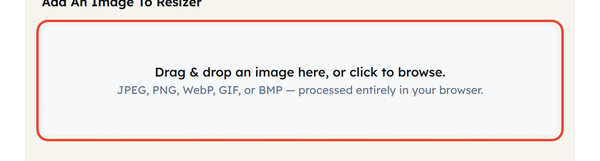
- Drag and drop to add an image, or click to browse. All JPEG, PNG, WebP, GIF, and BMP formats are supported.
- Set the width and height in pixels, or use 1/2 Size and 2 x Size for a quick proportional jump. Reset to original puts the numbers back if you overshoot.
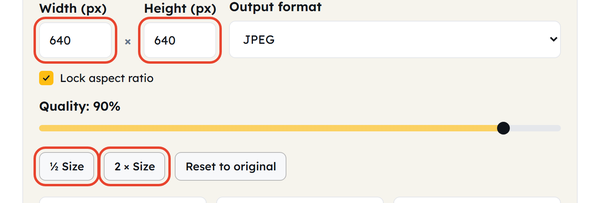
- Lock aspect ratio is already on, so changing one dimension moves the other to match. Untick it only when you deliberately want to set both yourself.

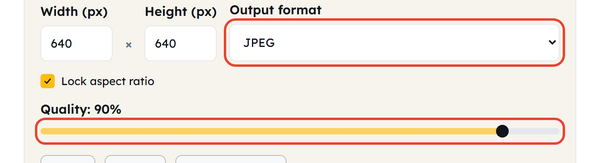
- Choose the output format – JPEG, PNG or WebP. JPEG is selected to begin with, and the quality slider (90% by default) applies to the lossy formats, JPEG and WebP.
- Check the new dimensions and the estimated output size, then click Download resized image.
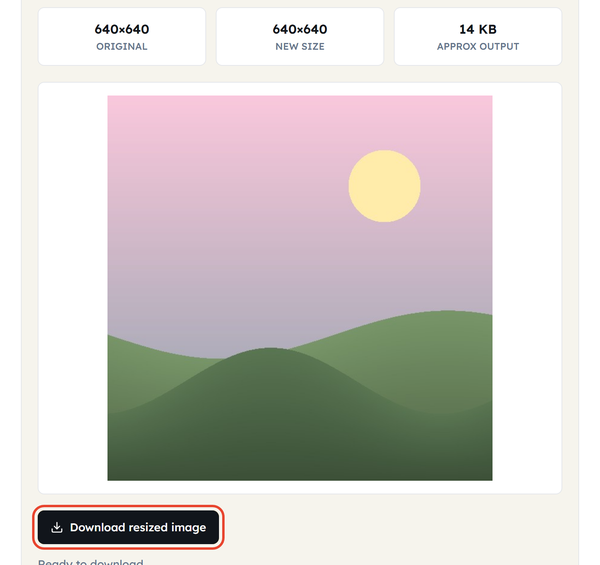
What Is Image Resizing, and How Is It Different From Cropping?
Resizing alters an image’s total size (width x height), increasing or decreasing the image size but not affecting the total content of the image. Cropping removes part of an image, while resizing changes the image’s dimensions. A crop can reduce the visible area without necessarily changing the scale of the remaining pixels.
Scaling down and scaling up are not equally safe. Making an image smaller is straightforward: there is more detail than the new size needs, so the result is clean and lighter. Making one bigger is riskier, because the extra pixels do not exist and have to be invented. Push a small photo too far and it gets softer, not more detailed.
Locking the aspect ratio is what stops a resize distorting the picture. With it on, changing the width moves the height to match and vice versa, so the proportions hold. Turning it off lets you stretch or squash on purpose – occasionally useful, but rarely what you want.
Choosing an output format affects both quality and file size:
- JPEG — Commonly used for photographs and other images with many colors. It uses lossy compression and does not support transparency.
- PNG — good for transparency and sharp detail, ideal for logos, graphics and screenshots; typically results in larger file sizes than JPEG for photos.
- WebP — Supports lossy and lossless compression and transparency, and is widely supported by modern browsers.
When You Would Use This
Meeting a site’s upload limit, preparing an image at the exact size a page or form expects, shrinking an oversized photo so a page loads faster, enlarging a small icon for a specific use, or converting between formats – say PNG to WebP – while resizing in the same step.
Do’s and Don’ts
Do:
- Unless you want to intentionally stretch the image, use lock aspect ratio.
- Resize images according to their intended size on the web page – an 800px wide image isn’t worth uploading at 4000px wide, except to make the page load slower.
- Consider WebP when you want a good balance between file size and image quality, provided your target platform supports it.
Don’t:
- Expect a big upscale to stay crisp – enlarging cannot invent detail, so the result is usually softer, not sharper.
- Think PNG is always the “highest quality” — PNG will usually be much larger than a JPEG or WebP file if they are of a similar quality for a photo.
- Reach for the resizer when you actually want to remove part of the frame – that is a crop, and resizing scales everything instead.
Good to Know
Oversized images are one of the most common and most fixable causes of a slow page. An image uploaded at several times the size it is displayed adds real weight for no visual gain, and that feeds straight into Core Web Vitals, which affect both experience and ranking. Resizing to the displayed size is the easy fix. On privacy: this tool resizes inside your browser and uploads nothing, so files such as ID scans or passport photos never leave your device.
Frequently Asked Questions
What’s the difference between resizing and cropping an image?
Why does my image look blurry after resizing it larger?
Enlarging means inventing pixel data that was never in the original file. That is called upscaling, and the further you push it the softer the result looks, because no extra detail exists to recover.
What does lock aspect ratio do?
It keeps the two dimensions in proportion: change the width and the height follows, so the picture is never stretched or squashed. It is switched on by default.
Which output format should I choose – JPEG, PNG, or WebP?
JPEG suits photographs where file size matters most. PNG keeps transparency and hard edges, which suits logos and graphics. WebP usually gives the smallest file at a given quality and works in every modern browser.
How does image size affect website loading speed?
Oversized images make pages slower to load, which hurts the experience and shows up in Core Web Vitals. Resizing to the size the image is actually displayed at is one of the easiest performance wins there is.
Is it safe to resize sensitive images, like ID or passport photos, with this tool?
Yes. The resizing happens in your browser and the file is never uploaded to a server, so a sensitive document never leaves your device.
Related Tools
Image Compressor
Shrink file size while keeping visuals sharp.
- 100% Free
- Customizable
- Download
- Unlimited
PNG to JPG
Convert PNG images to JPG with quality control.
- 100% Free
- Customizable
- Download
- Unlimited
Image to Base64
Encode images as Base64 for CSS or HTML.
- 100% Free
- Customizable
- Download
- Unlimited

Favicon Generator
Create favicons in multiple sizes from one image.
- 100% Free
- Customizable
- Download
- Unlimited
Image Cropper
Crop images to custom ratios and positions.
- 100% Free
- Customizable
- Download
- Unlimited