
Open Graph is a set of meta tags placed in a web page that control the title, description and image shown when the page is shared on social media.
Open Graph Preview
Preview how your link may appear when shared on social platforms.
Wondering how your webpage will look when someone shares it on Facebook, LinkedIn or Twitter/X? The Open Graph Preview tool shows the title, description and image that will appear on the shared card before you post the link. Enter your details, or paste in your Open Graph tags, and the preview updates instantly.
What Is Open Graph?
Open Graph is a set of meta tags added to a webpage’s code that tells social media platforms what to show when that page is shared. Instead of letting a platform guess your title or grab a random image, Open Graph tags let you decide what appears – the title, description, image and more.
What Is an Open Graph Preview?
An Open Graph Preview shows you how your link’s shared card will look before you post it anywhere. With this tool, you can check:
- Whether your title and description are filled in and readable
- Whether your image is set and displays properly
- Whether your title and description are a good length, or too long
- What the final preview card will look like, with a title, description, and domain name
This helps you spot issues, like a missing image or a cut-off title, before your visitors see them.
How to Use the Open Graph Preview Tool
- Your og:title – enter the title you want on the card. A counter tracks the length as you type; the checklist wants 40 to 60 characters.

- Add your og:url – Enter the URL of the webpage whose preview you want to test.

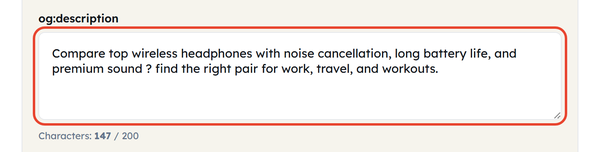
- Your og:description – enter a short summary of the page. The counter helps you stay inside the 55 to 200 characters the checklist looks for.
- Add your og:image URL – Paste the URL of the image that you wish to appear on the card (recommended image size: 1200×630).

- og:site_name – Enter your website name/brand name.

- og:type – Select the type of page you have (website, article, product or profile).

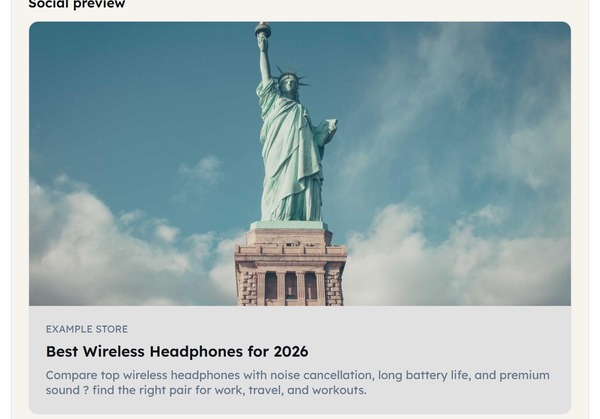
- Social preview – the card redraws live as you type, showing the image, title, description and either your site name or the domain.
- Checklist – confirms your title, description, URL and image are filled in and that the title and description lengths are inside the recommended ranges.

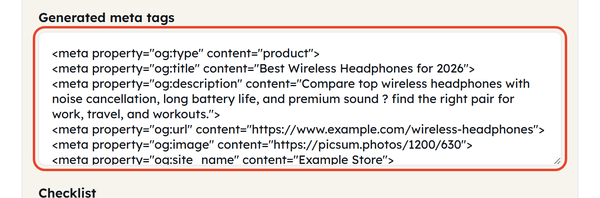
- Copy the generated tags – Once you are satisfied with your preview, click on the Copy tags button to generate the Open Graph tag code.
Why Are Open Graph Tags Important?
Whenever a user shares your website page on any social media site, the open graph tags play an important role in creating the preview card for the user. Without having these tags set, the social media platform tries to guess what the content of the link is. This results in your preview card having no image, no title, or even a wrong description.
Important Open Graph Tags
og:title
The title that appears on the shared card. A live counter keeps it short enough to read at a glance and long enough to pass the checklist.
og:description
The short summary that appears under the title. Keeping it inside the recommended length stops platforms cutting it off.
og:image
The image displayed on the card. A recommended size of 1200×630px is suggested for the best display.
og:url
The exact page URL associated with the preview. This makes sure the card links to the correct page.
What Can You Check With This Tool?
Open Graph Preview shows:
- Title character count – count of characters in your og:title.
- Description character count – the number of characters used for your og:description.
- Image URL – Whether you have defined a URL for your image.
- Status – A snapshot of how complete your Open Graph implementation is.
- Checklist – verifies your title, description, URL and image are defined, and that the title and description use the recommended number of characters.
Common Open Graph Problems
- Missing Title – No og:title tag is used, meaning there’s no proper heading for the card.
- Missing Description – There’s no og:description tag, which means that there’s no description for the card.
- Missing Image – There’s no og:image URL used, meaning that there’s no image for the card.
- Incorrect URL – There’s an incorrect URL in the og:url tag.
- Incomplete Metadata – Not all metadata tags are provided, which gives an incomplete preview.
How to Fix Open Graph Issues
- Open up the tool, paste in the title for your page, a brief description, link for your image and your page url.
- Look at the checklist to tell you if the fields are all present, or not too long/short.
- Adjust the og:title and og:description (using the character counts provided) as much as you want.
- Make sure og:image points at an image that really exists online – 1200 x 630 px is a safe size.
- If you like what your preview shows, then grab those tags it generates for you.
- Add the generated code in the <head> portion of your webpage.
Open Graph vs Meta Title and Meta Description
Open Graph metadata and standard SEO metadata are not the same thing, even though they can sound similar.
- Meta title and meta description control how your page appears in search engine results.
- Open Graph tags (og:title, og:description, og:image) control how your page appears when it’s shared on social media.
A page can have well-written SEO metadata but still show a broken or empty preview on social media if its Open Graph tags aren’t set up. It’s worth checking both separately.
Benefits of Using an Open Graph Preview Tool
- Preview how your shared link will look before it is published.
- Identify any missing image, title, and description quickly.
- Keep the title and description at a sensible length, guided by the live counters.
- Get ready-to-use Open Graph tags instantly with a single click.
- Stop guessing at social sharing metadata and checking it after the fact.
Who Should Use the Open Graph Checker?
- SEO professionals, ensuring social metadata is correct
- Digital marketers, checking how campaign links will be previewed
- Website owners adding Open Graph tags to their pages for the first time
- Bloggers, checking a post preview looks right in social feeds
- Developers implementing or troubleshooting Open Graph metadata
- Content creators, confirming a post looks the same wherever it is shared
Frequently Asked Questions
What is Open Graph?
What will I see in an Open Graph preview?
You see how your shared link card will look, built from the title, description, image and site name or domain you enter.
Why doesn’t my Open Graph image appear?
Most often because the og:image field is empty or the image URL does not load. Check that the URL opens on its own in a browser and points at a real image file.
How do I check Open Graph tags?
Fill in your title, description, image and URL, then read the live preview and the checklist to see whether anything is missing or the wrong length.
How do I correct Open Graph tag errors?
Fill in the blanks here – og:title, og:description, og:image, og:url and og:site_name – until the checklist passes, then copy the tags into your page.
Do Open Graph tags influence SEO?
Not directly. Open Graph tags control social sharing previews rather than search rankings, though a clear preview can earn more clicks on the links people share.
Can I preview a webpage before sharing it?
Yes. Enter your page’s Open Graph details into this tool to see a live preview of the card before you post the link anywhere.
Check Your Link Before You Share It
Ready to check your link before you share it? Use Tool Flora’s Open Graph Preview tool to fill in your title, description, image and URL, and see exactly how your shared card will look before you post.