
Yes, JPG doesn’t support transparency, so when converting you have to replace the transparent areas with a solid background color. Choose a background color that fits the intended use of the image.
PNG to JPG Converter
Convert between PNG, JPG, and WebP in any direction. When exporting to JPG, choose a background color for transparency — everything happens in your browser.
PNG is a lossless image format that preserves image quality and supports transparency. The downside is that it creates larger file sizes, which can be a real problem if you’re working with tight upload limits or where a smaller file really counts. This PNG to JPG converter converts images directly in your browser and completely in your browser – no file is ever uploaded to a server. You will also choose a color for the background of the transparent areas, because JPG does not handle transparency like PNG does.
How to Use the PNG to JPG Converter
- Drag & drop a PNG to add an image or click to browse your files.

- Check the output format – it opens on JPEG / JPG, and the same dropdown also offers PNG and WebP.

- If your PNG has any transparency, set a background color to replace it. JPG doesn’t support transparency, so this replaces transparent pixels with a solid color.

- Set the quality slider to find the right balance between file size and visual detail.

- Check the Source format, Output format and Output size readouts, then click Download converted image.
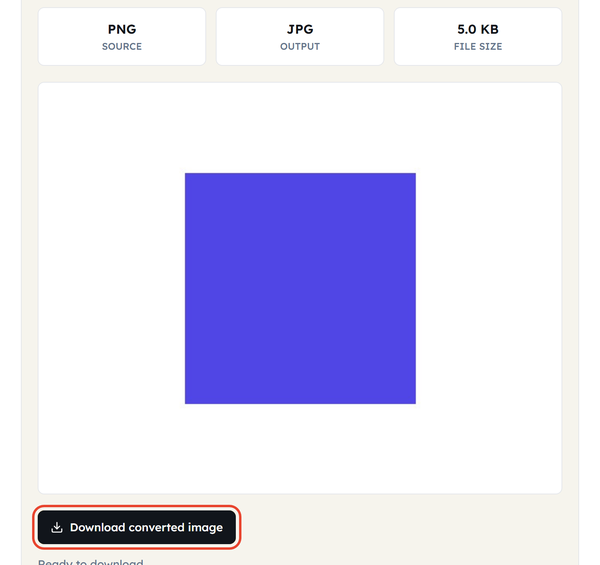
This same tool also does conversions in other directions – JPG to PNG, JPG to WebP, and PNG to WebP – just change the output format above if you need one of those instead.
What’s the Difference Between PNG and JPG?
PNG is lossless, meaning that no image detail is lost when the file is saved. This is why PNGs are great for logos, icons, screenshots, and anything with sharp edges or fine text. PNG also supports transparency, which allows parts of an image to remain transparent. This makes PNG useful for logos and graphics that need to appear over different backgrounds.”
JPG (or JPEG) uses lossy compression, meaning that some detail is lost so as to make the file size much smaller. That makes JPG the better choice for photographs and anything where file size is more important than pixel-perfect precision — but it comes with two trade-offs that are worth understanding: some fine detail is lost in the compression process, and JPG has no way to represent transparency at all.
This converter asks for a background color for that second point, and that’s exactly why. Once you convert to JPG, any pixel that was transparent in the original PNG has to become some solid color – there’s no way around it, the format just doesn’t support transparency. If you leave it blank or default, a logo with a transparent background might convert with a weird white (or black) box around it. Avoids the surprise by choosing the background color intentionally – often the exact hex or RGB value of the page or context the image will really live on.
Regarding quality and file size: converting from PNG to JPG often results in a significant reduction in file size, sometimes by 80% or more, especially for photos. The quality slider controls the balance between JPEG image quality and file size, the same trade-off an image compressor works with. Higher settings generally preserve more detail but produce larger files. Higher quality means more detail and larger file size. Lower quality means smaller file with more visible compression.
When You Would Use This
Shrinking a large PNG screenshot or graphic before emailing it or uploading it somewhere with a size limit; getting a photo saved as PNG into the format the web actually expects; meeting a form that only accepts JPG; or cutting the weight of an image-heavy page.
Do’s and Don’ts
Do:
- Use a higher quality setting for images with text, sharp edges, or fine details.
- Use a moderate quality setting when reducing the size of photographs for web use.
- Keep the original PNG if you may need transparency or lossless quality later.
Don’t:
- Convert an icon or logo that requires a transparent background to JPG expecting the transparency to live on – it can’t, by design of the format.
- Always assume “convert to JPG” is the right move — if you need the image to remain perfectly sharp (like a screenshot with small text) or you need transparency, PNG is still the better choice.
- Push the quality slider too low for anything that will be viewed full size or printed – heavy compression shows up quickly as blocky edges and haloes.
Good to Know
A few things worth knowing before you convert. JPG beats PNG for photographs and any image with soft gradients, while PNG stays ahead for logos, icons, screenshots and anything needing transparency. Quality around 80 to 90 suits most web use; go higher for text and fine detail, lower only for images that will be seen small. Some PNGs barely shrink at all – a flat graphic with few colours is already efficiently stored, and JPG can even come out larger. Every transparent pixel is replaced by the background colour you choose, because JPG has no alpha channel. And converting a JPG back to PNG never restores what the JPG threw away; the detail is gone for good, so keep the original.
Frequently Asked Questions
Can I turn a transparent background PNG to JPG?
Is PNG to JPG conversion bad for image quality?
To a degree, yes. JPG uses lossy compression, so some image data is discarded on conversion. A higher quality setting keeps more detail at the cost of a larger file – for most photographs the difference is invisible at normal viewing size.
Often it can, especially for photographic images. The amount of size reduction is however dependent on the original PNG its contents and dimensions and the chosen JPG quality.
What color should I use for the background when converting a PNG with transparency?
Choose a color appropriate for the picture’s end use. White is a good choice for many documents and websites, but you may prefer to pick a color that lets the image blend in with a certain design or background.
Is PNG the same format as JPG?
No. PNG and JPG are different image formats. PNG supports transparency and uses lossless compression. JPG uses lossy compression and doesn ‘t support transparency. JPG is the common name for JPEG.
Can I convert JPG to PNG?
Yes you can convert a JPG to a PNG, but converting it back won’t recover image data lost during the original JPG compression. Keep the source PNG if you want the original quality or transparency.
Does PNG to JPG compression affect the image size?
In general, the change in format does not affect the height or width of the image. Dimensions remain unchanged, so to change them you need to resize the image as a separate step.
Do I upload my PNG when converting?
And if the converter does all the image processing in your browser, there is no need to upload the file to a server. Before making a strong privacy claim on the page, please verify that the tool implementation is consistent with this behavior.
Related Tools

Image Resizer
Resize images to exact dimensions or percentages.
- 100% Free
- Customizable
- Download
- Unlimited

Image Compressor
Shrink file size while keeping visuals sharp.
- 100% Free
- Customizable
- Download
- Unlimited
Image to Base64
Encode images as Base64 for CSS or HTML.
- 100% Free
- Customizable
- Download
- Unlimited

Favicon Generator
Create favicons in multiple sizes from one image.
- 100% Free
- Customizable
- Download
- Unlimited
Image Cropper
Crop images to custom ratios and positions.
- 100% Free
- Customizable
- Download
- Unlimited